Wednesday, December 31, 2025
How VCom Works: A Complete Guide to Practice Communication

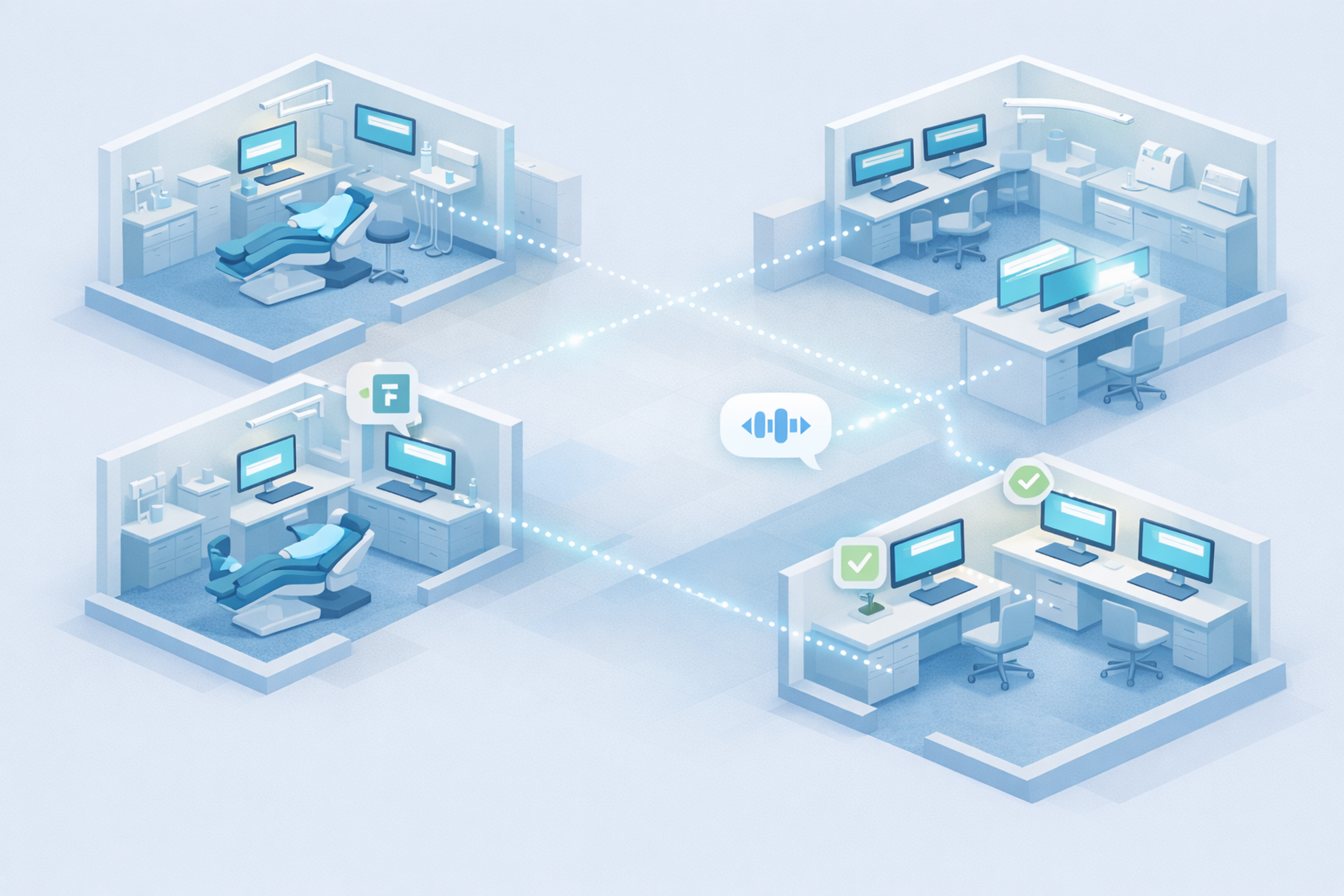
VCom transforms every workstation into a subtle communication hub. No extra hardware, no radios, no intercom noise—just instant coordination through the keyboards your team already uses.
This guide explains how practices get the most out of VCom by understanding two distinct workstation types and configuring each for maximum efficiency.
Two Types of Workstations
Every practice has two categories of computers, and VCom handles them differently.
Shared Workstations
These are computers used by multiple team members throughout the day. In a medical or dental practice, this includes treatment rooms, procedure rooms, lab stations, imaging areas, and sterilization zones.
The key characteristic: The person changes, but the location matters.
When an assistant sits down in Room 6, then a hygienist, then a doctor—each person needs to send messages that identify where they are, not who they are. The room is the constant.
How VCom handles this:
Shared workstations use the @here placeholder. When someone presses a shortcut, @here automatically becomes the workstation name.
- Press F1 in Room 6 → "Assistant to Room 6"
- Press F1 in Room 11 → "Assistant to Room 11"
Same shortcut, different location, correct message every time.
Configuration approach:
Shortcuts for shared workstations are configured globally through the VCom web app. Set them once, and every shared workstation receives the same shortcuts automatically. Staff don't need to remember which room they're in—the system knows.
Assigned Workstations
These are computers owned by a specific person or role. Reception desks, checkout stations, scheduling coordinators, office managers, and provider offices typically fall into this category.
The key characteristic: The person is consistent, so shortcuts reflect their specific responsibilities.
A receptionist doesn't need "Assistant to @here"—they're never in a treatment room. Instead, they need shortcuts that match what they do all day: announcing patient arrivals, notifying providers, coordinating with checkout.
How VCom handles this:
Assigned workstations use custom shortcuts tailored to that role. The @here placeholder is rarely needed because the messages are role-specific rather than location-specific.
Configuration approach:
Assigned workstations receive the same global shortcuts as shared workstations, but users can override or delete shortcuts that don't apply to their role. Customization happens directly on the installation—not through the web app. Each station ends up with shortcuts that match its daily workflow.
The Communication Flow
VCom creates two natural communication patterns within a practice.
Treatment Rooms → Support
Staff in treatment rooms request help, signal room status, and call for providers.
- "Assistant to Room 8" — need an extra pair of hands
- "Dr. Jacobson Exam Room 3" — ready for the provider
- "Room 5 Dirty" — turnover needed
- "Timer Room 6" — tracking a procedure
These messages go out to the entire location. The right person sees it and responds.
Front Office → Clinical
Staff at the front coordinate patient flow and administrative needs.
- "Dr. Drake Patient Here" — patient has arrived
- "New Patient Arrived" — first visit, extra attention needed
- "Patient Waiting" — schedule is backing up
- "Insurance Question" — billing needs clinical input
These messages keep the back informed about what's happening up front—without anyone walking back and forth.
Audio Cues
Sounds are assigned to individuals and roles—not just messages. This means staff only need to pay attention when a message is generic (for everyone) or specifically targeting them.
How it works:
When "Dr. Jacobson Exam Room 8" is sent, Dr. Jacobson's unique sound plays. Other staff hear nothing or a subtle generic tone. Dr. Jacobson knows instantly: "That's for me."
When "Assistant to Room 3" is sent, the assistant sound plays. Assistants know to check the message. Providers and front desk can ignore it.
When a generic announcement goes out, everyone hears it.
This creates efficiency: Staff aren't constantly checking messages that don't concern them. They learn to listen for their sound and respond only when needed.
Best practices for sounds:
Keep sounds between 1 and 1.5 seconds. Choose distinct tones that don't blend into background noise. Avoid sounds that resemble phone notifications or alarms. Assign unique sounds to each provider and role.
Responding to Messages
Not every message requires a reply, but when one does, VCom makes it instant.
Reply Templates
Pre-configured responses let staff acknowledge messages with a single click: "OK," "On My Way," "5 Minutes," or "More Than 5 Minutes."
Quick Acknowledgment Shortcuts
For the fastest response, assign a shortcut to common replies. When someone requests "Dr. Drake Exam Room 7," Dr. Drake can press F2 from anywhere to send "OK"—the team knows he got the message.
Common Scenarios
"Room 8 is ready for the doctor. How does he know?"
Press F5: "Dr. Jacobson Exam Room 8." Dr. Jacobson hears his unique sound, glances at the banner on any screen, and knows exactly where to go.
"We finished a procedure and the room needs turnover. Who tells sterilization?"
Press F9: "Room 8 Dirty." Sterilization sees it instantly. No walking to check, no shouting down the hall.
"A patient just arrived for Dr. Drake. How do we let him know?"
From Reception, press F1: "Dr. Drake Patient Here." Dr. Drake and the team see the arrival. Patient flow stays coordinated.
"The doctor is running behind. How does the front desk know?"
Press F3: "5 Minutes" or F4: "More Than 5 Minutes." Front desk adjusts patient expectations without making calls or walking back.
"We need an assistant in Room 3 but everyone is busy. How do we get help?"
Press F1: "Assistant to Room 3." Every assistant hears it. Whoever is free responds.
"How do I confirm I got the message without stopping what I'm doing?"
Press F2: "OK." The sender knows you received it. Done.
Setting Up a New Practice
Step 1: Map Your Workstations
List every computer that will run VCom. Categorize each as shared or assigned.
Step 2: Configure Global Shortcuts
For shared workstations, define the shortcuts that every treatment room needs: assistant requests, provider exam calls (one per provider), room status updates, timer functions, and quick replies.
Step 3: Customize Assigned Workstations
For each assigned workstation, ask: "What does this person communicate most often?" Build shortcuts around their daily workflow, not generic templates.
Step 4: Assign Audio Cues
Decide which recipients and messages deserve unique sounds. Start simple—you can always add more distinction later.
Step 5: Train the Team
Focus training on two things: the shortcuts they'll use most (typically 3-5 per role), and listening for their sound (recognizing when a message is for them).
Beyond Dental Practices
VCom works for any practice or facility with similar dynamics: medical clinics, veterinary practices, urgent care centers, chiropractic offices, physical therapy clinics, optical practices, and outpatient surgery centers.
The pattern is the same: shared clinical spaces where staff rotate, assigned administrative stations where roles are fixed, and a constant need for subtle, instant coordination.
Summary
VCom adapts to how your practice actually works. Treatment rooms stay standardized for easy staff rotation. Administrative stations get personalized for role-specific efficiency. Targeted audio cues mean staff only respond when the message is for them. The result: subtle, seamless coordination without noise, extra devices, or wasted steps.