Wednesday, December 31, 2025
Understanding the VCom Banner

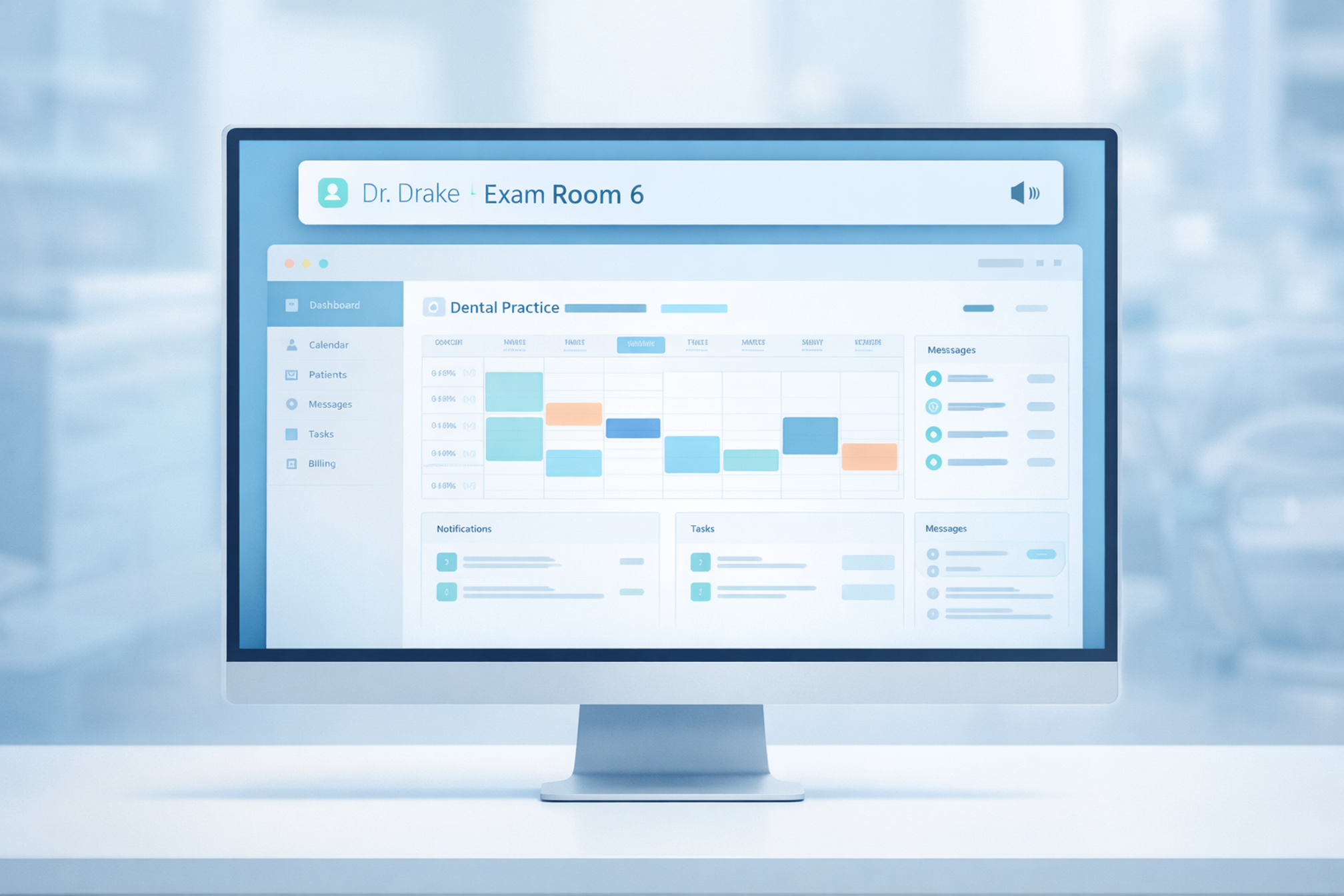
The VCom banner is what makes everything work. It's a slim, always-visible bar that sits at the top of your screen, ready to display messages the moment they arrive. No app to open. No window to find. Just instant communication, right where you're already working.
This guide covers how the banner works, how to interact with it, and how to customize it for your workflow.
Always On Top
The banner stays visible no matter what application you're using. Whether you're charting in your practice management software, reviewing X-rays, or checking email—the banner is there.
This is intentional. In a busy practice, switching between windows means missed messages. The banner eliminates that problem by staying in your line of sight without taking over your screen.
How Messages Appear
When a message is sent to your location, the banner displays it immediately. You'll see:
- The message content — "Dr. Drake Exam Room 6" or "Assistant to Room 3"
- The sender — which workstation sent the message
- The timestamp — when it was sent
If a sound is assigned to the recipient in that message, you'll hear it too. This combination of visual and audio notification ensures you never miss what's meant for you.
Responding to Messages
Not every message needs a reply, but when one does, the banner makes it easy.
Reply Templates
Click on the message to see available reply templates. These are pre-configured responses like:
- OK
- On My Way
- 5 Minutes
- More Than 5 Minutes
Select one and your reply is sent instantly. No typing required.
Keyboard Shortcuts
For even faster responses, use your assigned shortcuts. If F2 is configured as "OK," you can acknowledge a message without touching the mouse. See the message, press F2, done.
Multiple Messages
When several messages arrive in quick succession, the banner handles them gracefully. Messages stack and can be scrolled through, so nothing gets buried.
Each message remains visible until you dismiss it or it times out based on your settings. Important messages won't disappear before you've had a chance to see them.
Audio Cues
The banner works hand-in-hand with VCom's audio system. When a message arrives:
- If it's addressed to you (your name or role), your unique sound plays
- If it's a generic message, a neutral sound plays (or no sound, depending on configuration)
- If it's for someone else, you may hear nothing at all
This means you can stay focused on your current task and only check the banner when you hear your sound. Your ears filter the messages before your eyes need to.
Sending Messages
The banner isn't just for receiving—it's also where you send messages.
Using Shortcuts
Press a configured shortcut key (F1 through F12, or combinations like Ctrl+1) and your message sends immediately. If the shortcut includes @here, the banner automatically inserts your workstation name.
Press F1 in Room 8 → "Assistant to Room 8" sends instantly.
Composing Custom Messages
Need to send something that isn't a shortcut? The banner includes a compose option for free-form messages. Type your message, select recipients if needed, and send.
For most workflows, shortcuts handle 90% of communication. But the compose option is there when you need flexibility.
Banner Position and Size
The banner is designed to be unobtrusive while remaining visible. It sits at the top of your screen by default, taking up minimal vertical space.
Depending on your setup, you can adjust:
- Position — top of the screen
- Width — how much horizontal space it occupies
- Behavior — how long messages stay visible before auto-dismissing
These settings can be configured per installation, so workstations with different needs can have different banner behaviors.
Tips for Getting the Most Out of the Banner
Keep your volume on. Audio cues are half the system. If your speakers are muted, you're relying entirely on seeing the banner—which works, but isn't as efficient.
Learn your sounds. Spend the first few days paying attention to which sounds belong to which recipients. Once you've internalized them, you'll react to your sound without thinking.
Use shortcuts for replies. If you find yourself clicking "OK" a dozen times a day, assign it to F2. The keyboard is faster than the mouse.
Don't fight the always-on-top. Some users initially want to minimize or hide the banner. Resist that urge. The banner's visibility is what makes VCom work. After a day or two, you won't even notice it's there—until a message arrives.
Summary
The VCom banner is simple by design: a thin bar that shows messages, plays sounds, and lets you reply. But that simplicity is what makes it powerful. It stays out of your way until you need it, then delivers exactly what you need to keep the practice running smoothly.
No windows to manage. No apps to switch to. Just a banner that's always there, always ready.